tried reinstalling everything ..stil;l showing same
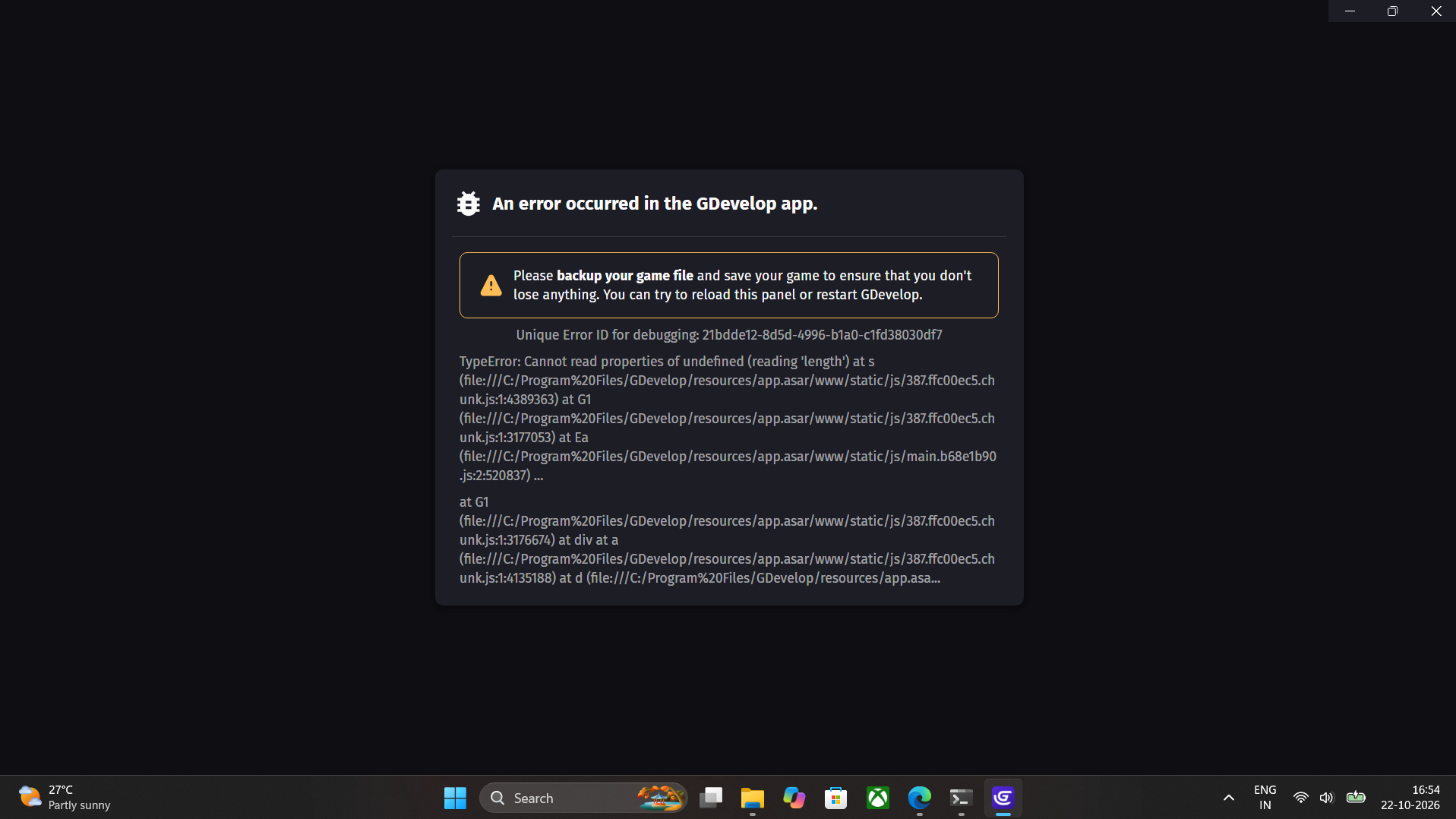
this happened when i try to login with ios.. but now i cant logout or reinstall
Hmm.. When that problem occurred to me, I just left Gdevelop for a few hours and came back, I think I also tried using the BROWSER version.
Hi! Thanks for reaching out. To help us investigate, could you please send us the following information:
1. Your GDevelop version
- Desktop app (Windows, macOS, Linux): open the Help menu, then click About GDevelop. The version number is shown at the top of the window (for example
5.5.230). - Web app (editor.gdevelop.io): open the main menu (the GDevelop icon at the top left), then click About GDevelop.
Please also tell us whether you are using the desktop app or the web app.
2. Where your project is saved
Is your project saved locally (a file on your computer) or on the GDevelop Cloud?
3. The console logs
The most useful part for us is what shows up in the console at the moment the error happens. So please open the console first, then reproduce the problem:
- Open the console:
- Desktop app: open the View menu and click Toggle Developer Tools, or press
Ctrl + Shift + I(Cmd + Option + Ion macOS). - Web app: press
F12, orCtrl + Shift + I(Cmd + Option + Ion macOS).
- In the panel that opens, click the Console tab.
- In the Default levels dropdown at the top of the console, make sure all levels are checked (Verbose, Info, Warnings, Errors).
- Leave the console open and reproduce the problem in GDevelop, until you see the error.
- Right after the error appears, right-click anywhere inside the console messages.
- Click Save as… in the menu that appears.
- Save the
.logfile on your computer. - Attach this file to your reply.
If you use Firefox for the web app, the right-click menu shows Export Visible Messages To > File instead of “Save as…”.
This will really help us
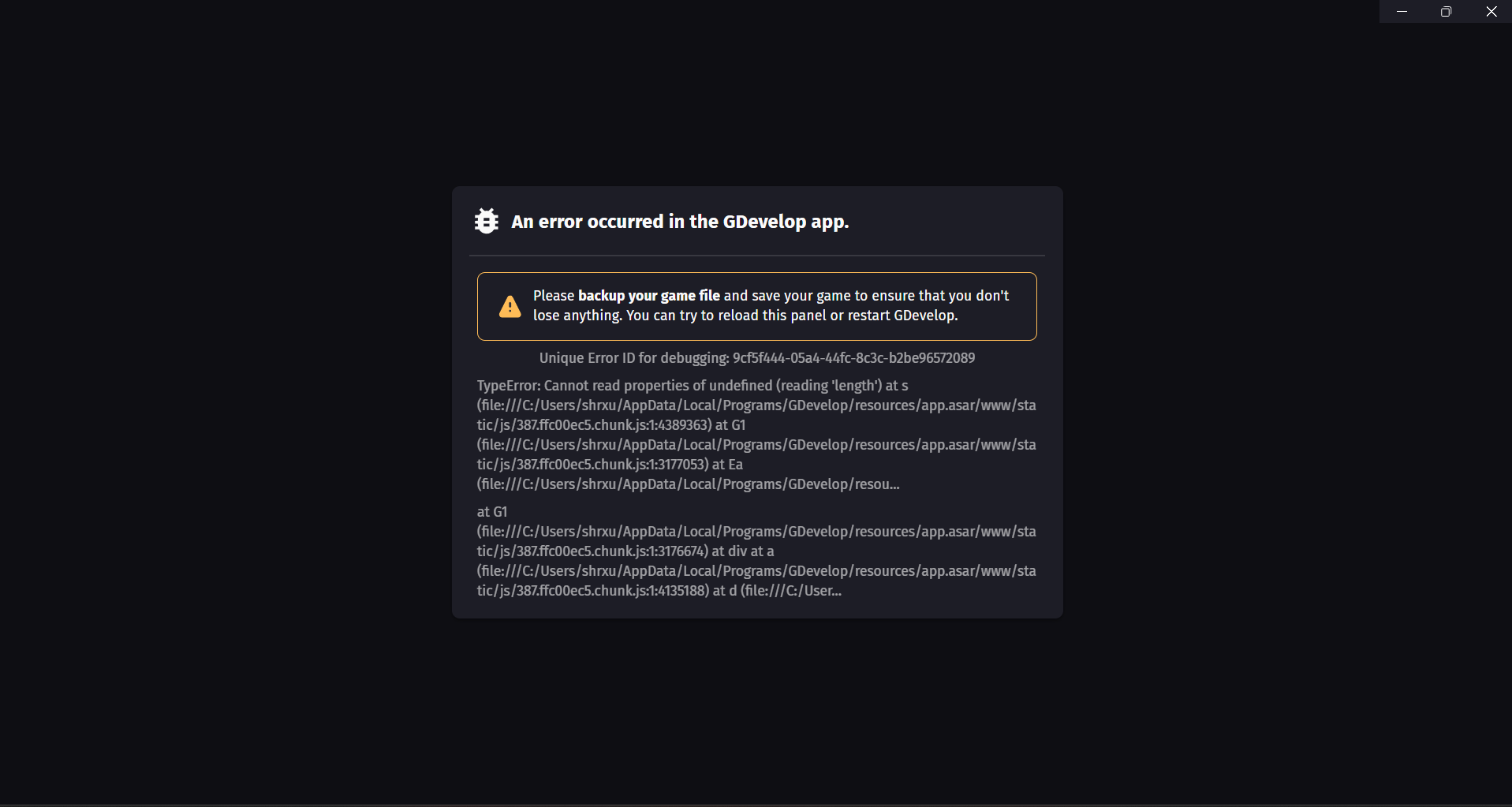
this happened when i try to login with ios.. but now i cant logout or reinstall
Ah, that’s interesting, I’ll look into that.
Have you tried changing the connection method? If you are on Windows, you will need to delete your connection preferences to relaunch the app.
To Log Out of GDevelop without the app:
Step 1: Open the AppData folder using Windows + R
- Press the Windows Key + R on your keyboard
- This shortcut opens the “Run” dialog box a quick Windows tool used to launch apps, commands, or system paths directly.
- Type
%APPDATA%\GDevelop 5into the box, a explorer windows will be opened up
Step 2: Delete session files to log out
Important: First make a copy of the content of the folder. And be sure there is no saves of your gdevelop projects there. And make sure GDevelop is closed before deleting any files.
Delete the following items inside the GDevelop 5 folder:
- Primary folders to delete:
Local StorageandSession Storage(stores authentication and account data)
You can also delete everything, because when you launch GDevelop again, these folders and files will automatically be recreated, and you will be asked to sign in to your account. But you will loose all your preferences setp in the app. That’s why made a copy of the folder first to have no regrets.