[Workaround found] Kawase/Gaussian blur layer effect adds unwanted light border to scene edges on some layers

I am applying Kawase blur to several layers. On one layer, on the bottom and right edges of the screen, an unwanted light border is introduced. This is despite the artwork not being cropped to the scene i.e. some of the artwork ‘spills off’ the edges. In photoshop, if you blur an image that is the same size as the canvas, you get a border like this, where you can see the white or transparent background behind the photo because there is not enough image beyond the canvas edge for the blur to be effective. The light border that GDevelop adds does not seem to be the scene colour (I changed it to see) and it is not the colour of the artwork underneath the layer in question.

Gaussian blur does the same thing.

This issue does not affect most of my other layers - only this grass layer and one other (the other is also at the bottom edge of the scene). The issue happens with tiles and regular sprite objects. There are no other effects applied to these layers. The Kawase blur’s padding setting doesn’t make any difference, though I am unsure what it’s supposed to do in the context of this effect.

If the effect behaved the same way on all edges with all my layers, I would put it down to “That’s just how the effect is”, but it only affects 2 layers in my project.


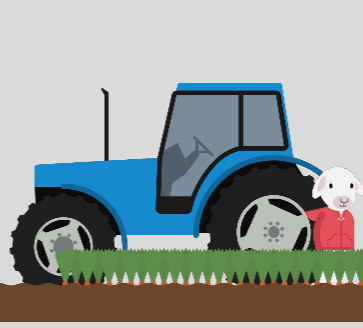
Game preview. The tiled sprite at the bottom of the screen gets a light border on the bottom and right edge.
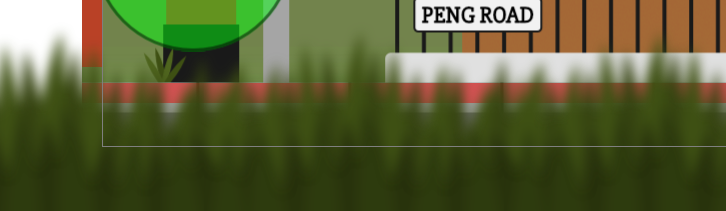

And here’s how the grass tile looks in the scene editor.


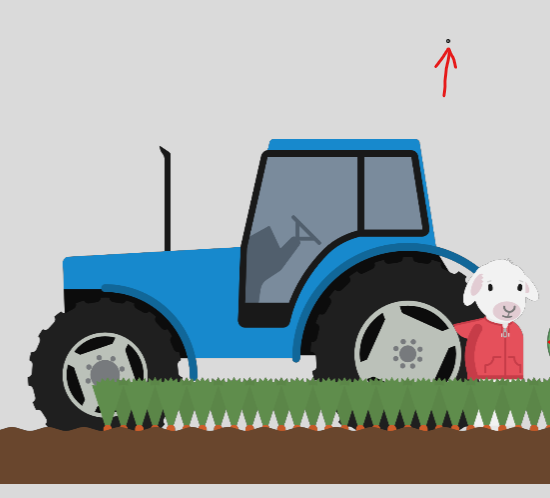
Game preview without blur (my grass graphic has some blur on it within the image, so that’s why it already looks somewhat blurry. That is not an effect applied in GD; it is baked into the image).


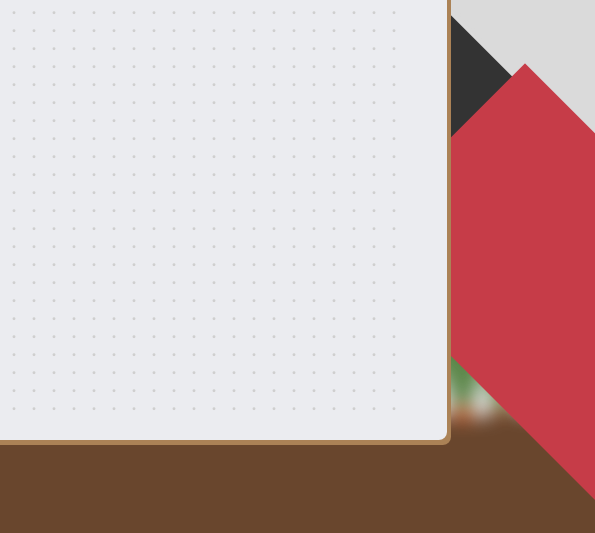
Game preview with the blur turned on (when my protagonist opens his quest book).


And with the affected layers hidden. The main artwork is fine with blur on and has no unwanted edge.

Edit: another example from another scene, where the issue is more obvious:
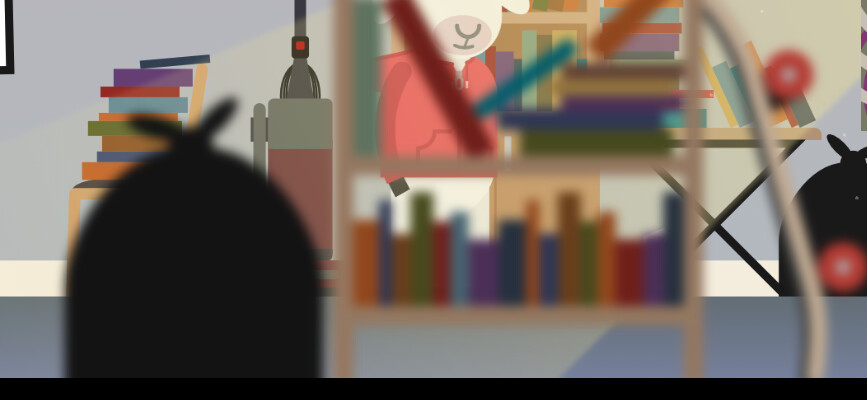

Before blur turned on.
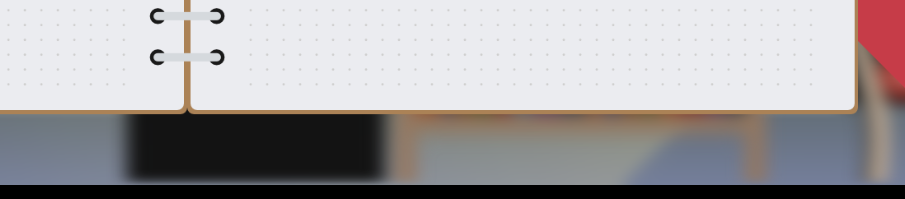

With Kawase blur turned on. Notice the bottom of the bin/trash bag. Again, there is around 20 pixels of bag graphic that falls below the scene edge.

As an experiment, I tried removing the blur from the sprite object (the blur applied to the graphic itself in the art software) and this made no difference. I tried with solid objects (no transparent pixels). No difference. Both blur effects introduce an unwanted border on the bottom and right edges of the scene for my foreground layers.

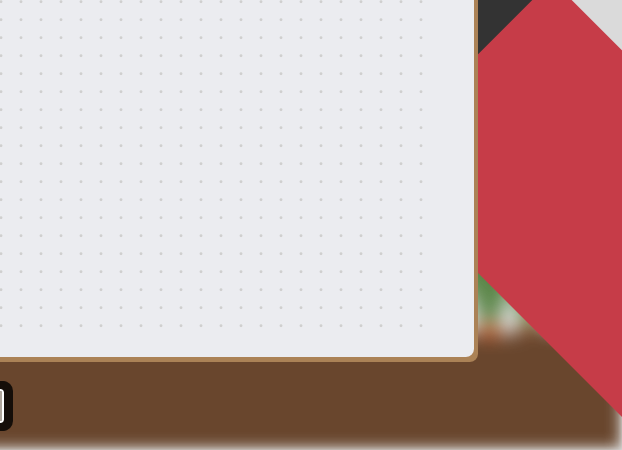
@worriedpixels I would like someone from the GD team to look into this, I just noticed the issue on my end too, didn’t want to create a new post about it as you explained it perfectly.

Here it is on my end
efefefef

Using blur filters would create a line around the layer that is using it around the edges of the game screen.

This issue, that has no doubt fascinated thousands of you, has been an on-off pain for me for a while now, but I stumbled on a weird workaround yesterday.

When the notebook (journal) is used in my game, I blur the base layer underneath. As you can see from the screenshot below, the bottom and right edges of the base layer end up with this unwanted gap when the blur is applied. It was only happening with some scenes. I worked out that it’s the scenes where the layer is not complexly covered by imagery. Most of my scenes have sprite objects covering them completely: a grid of 300 x 280 pngs with my artwork in them. But the problem scenes only have some artwork lower down on the screen, like grass or a road.

In such scenes, the blur fix was to put a small sprite object at the top of the Base layer. I put a tiny sprite at -20 Y on my Base layer, and the blur works properly! Some longer scenes need more than one object placed this way. I turn on blur, see where it is not rendering as expected, and put an object at the top in that area. Weird, but it works. I have tried this workaround on three affected scenes and it fixed all of them.

Note: if you hide the fixer object, the blur issue comes back. It must be visible.

@CorianderGames I know this was a while ago, but you may be interested in my workaround if you’re still having the same issue.

Unwanted border bottom and right:

Artwork on Base layer is lower down, with lots of the layer having nothing on it:

I add a tiny sprite object at -20 Y:

Blur now works as expected:

Hello both @worriedpixels @CorianderGames

I’ve tried fixing the issues you were mentioning, can you try this GDevelop installer ?

Make sure you backup your project before, just in case, even though there shouldn’t be any risk.

@worriedpixels if you try it out, make sure you remove your workaround before to see if this if fixed without.

Let me know!
If this fixes it, we’ll merge it to the next release.

Hi Clement. I’m a bit nervous about installing pre-release versions of GDevelop, but I am open to it. Once I have installed it and tested the blur, would I then need to uninstall it and reinstall the current release version? Thanks.

Yes, you can then re-install the current release.

The changes I made are only visual on how effects are rendered, so there will be no change to your project at all, you’re safe :slight_smile:

The issue is gone with the release you linked to. I removed my little hacky helper objects, and the blur now works as expected without them. I tried two affected scenes. Wonderful! I’ll look forward to that fix making it into an upcoming release. Thank you.