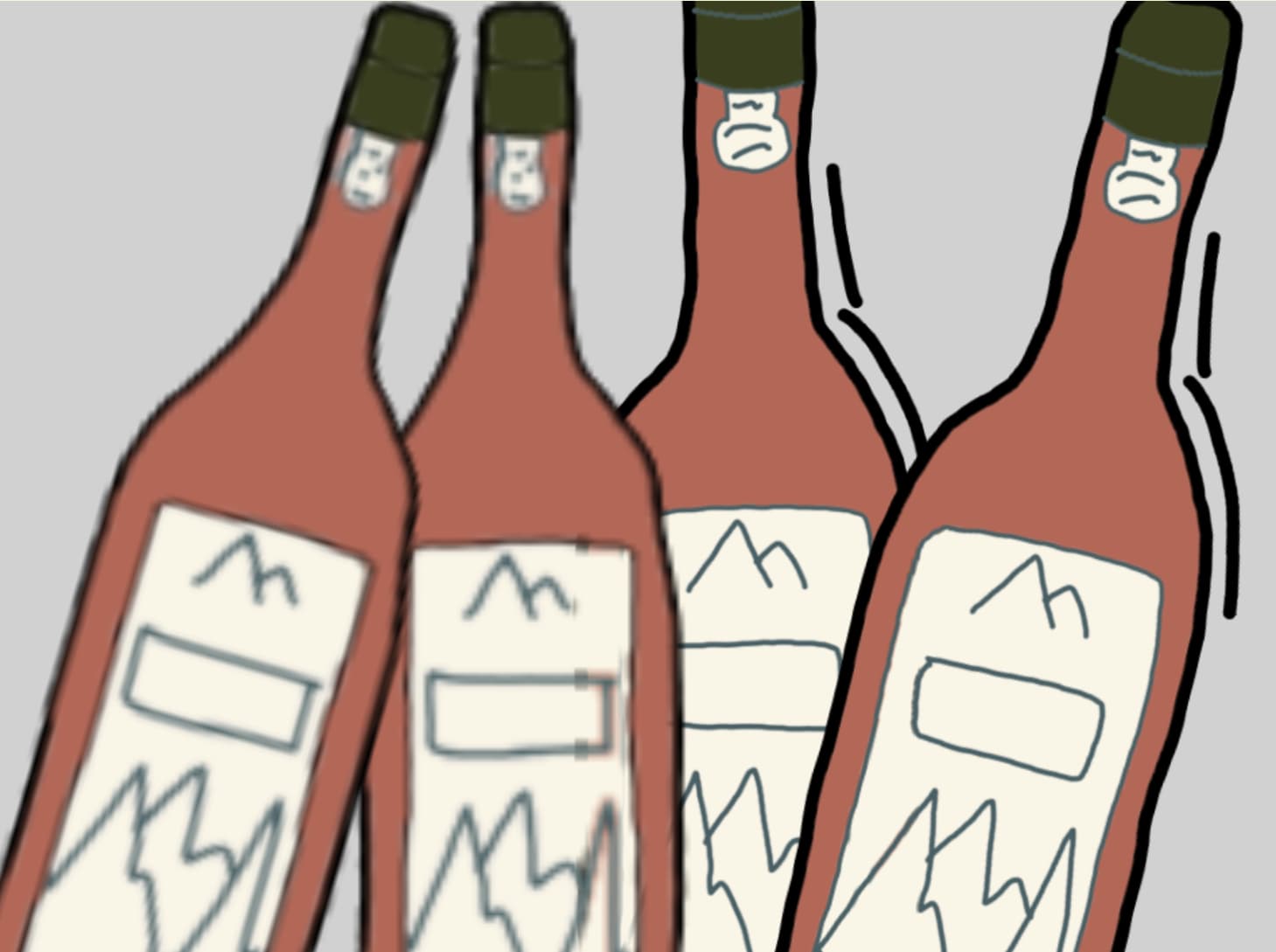
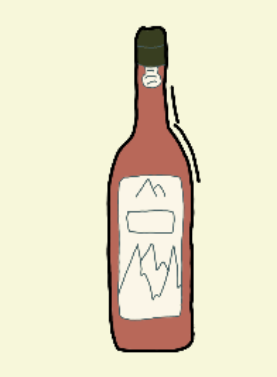
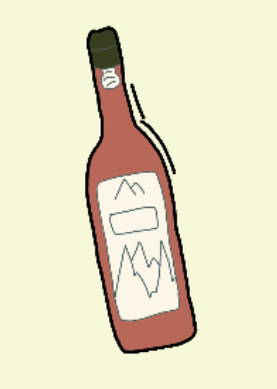
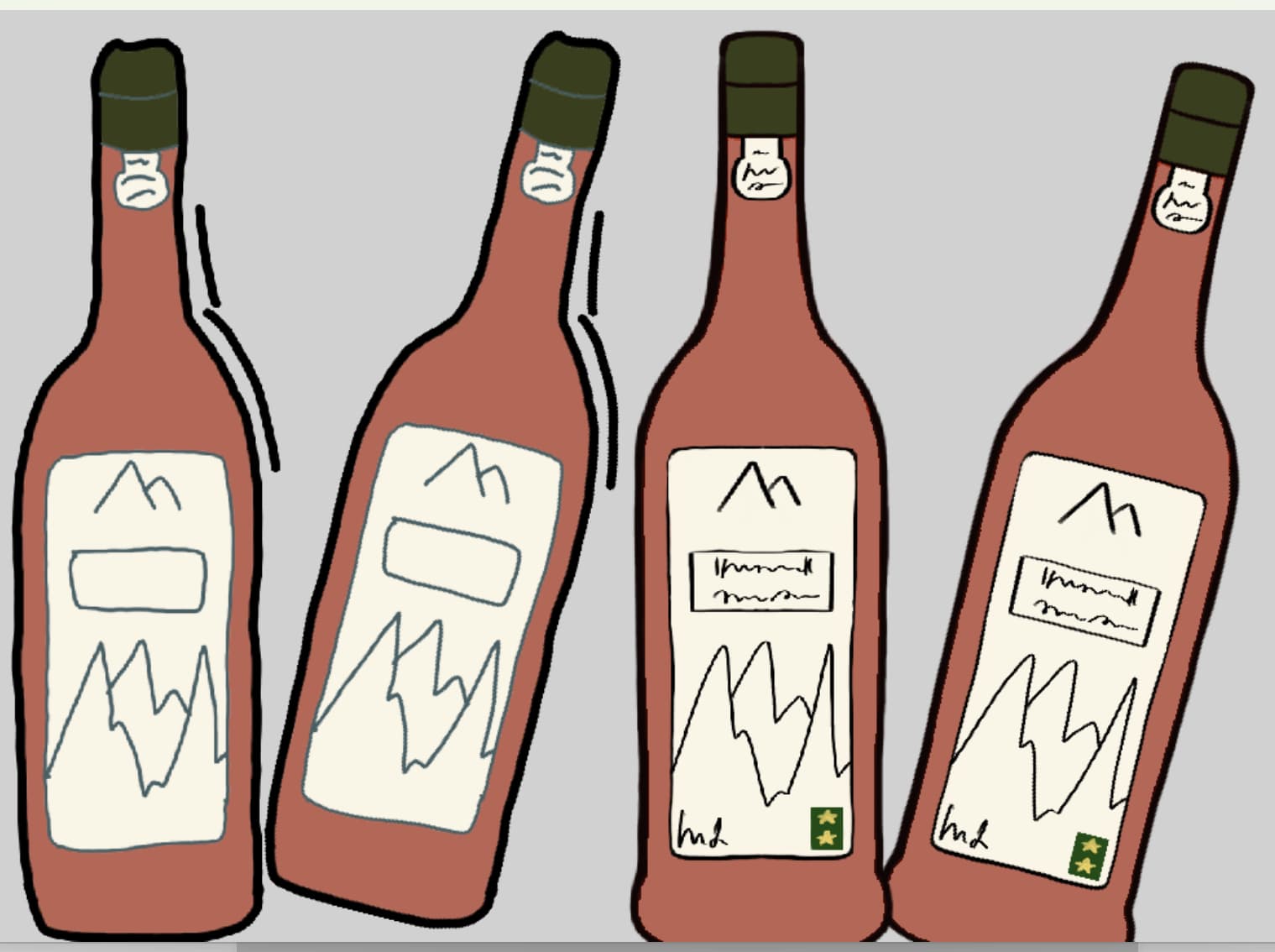
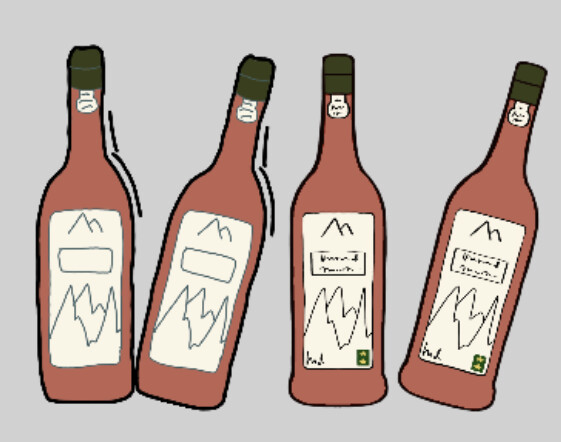
I’m writing here to try to understand better how to manage my sprites to avoid blurry or pixelised effects. You’ll see below an exemple of the “blurry” or “pixelised” black lines I’m talking about.
It’s particularly visible when sprites are rotated (see pink bottle). I tried both to tick the “smooth the image” box (in project resources) and to cancel it, but in both cases the results weren’t satisfying. The screenshot above is the best result I could get.
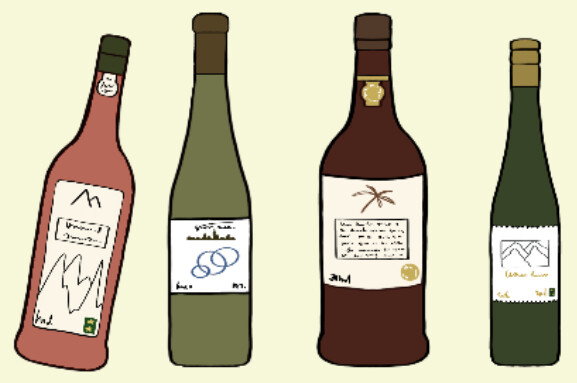
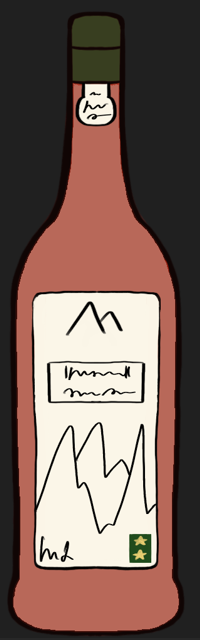
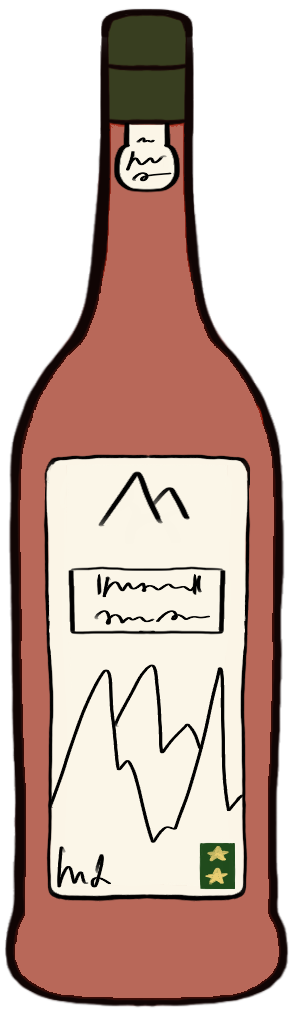
The original bottles were drawn on procreate and are approximately 300*1000. As you’ll see on the screenshots below, the bottles are suppose to look much better, without this weird blurry effect and with quite clear black lines.
My project resolution is 1280*720. In order to make the bottles correspond the screen size, I tried two methods: 1) reducing the scope (*0.23) at the beginning of the scene (events) and 2) by reducing the sprites size before importing them to the game scene. In both cases, the results are almost the same and remain not satisfying.
Would someone have some tips to make it look better and maintain the nice definition of the original drawings?
Thanks a lot in advance and have a nice time of the day
VLC
When you tried ticking the box in properties - did you try it with a new image as I think when you tick the box, this (edit … might possibly in my limited experience) only affect the new images that are brought into resources
(Edit…look below for a possibly more accurate response)
I don’t have any good answers for you. But from what you’ve said, your final bottle size in GDevelop is about 70 x 230 pixels which means your bottle outlines are about 3-5 pixels wide. That’s not much space for nice feathered edges (anti aliasing). Which means you’ve got all the jagginess in the shape of actual pixels.
The only thing I can think of is to experiment in Procreate and draw a test bottle at the final size of 70 x 230 and see if the right brushes will help the outline look better. I don’t think it would make much or any difference though.
Maybe the real answer is to judge the bottle outlines in your actual game preview where you probably can’t zoom in and see every little jaggy edge. I assume image smoothing was not on for your first pic, it will definitely help and my experience of it is that it gives an instant change without needing a new image to be imported.
Hi to the both of you and thanks for taking the time to answer
I’ll try drawing directly with the right sprite size and see what comes out of it and keep you posted!
Also, I was thinking of using a higher resolution for my game to avoid shrinking my drawings to much. What do you think?
Hi again, I just did an experiment. I traced over your bottle in Krita and drew it at 70 x 230 and imported it into a 1280 x 720 game. Then I drew the bottle again at 300 x 1000, imported it and scaled it in GDevelop to the smaller size.
The big version looked great! No jagginess at all so it might pay to look at what you’re doing in Procreate. Was your good version pics you posted a screenshot from Procreate or from the saved picture? If it was from within Procreate then maybe your save settings aren’t optimal.
I used Krita on a laptop and drew with a stylus using a very basic no frills brush. The extra lines to the right were drawn with a mouse to make sure the smoothness wasn’t from pressure sensitivity etc.
The small version wasn’t too jaggy but the edges were a bit blurry. The file sizes were: small botlle 13k, big bottle 89k.
The image is a screenshot from a preview, I made an event so I could zoom in.
Hi Bubble,
you’re such a hero! Thanks so much for taking the time to try this out, redrawing the bottles and everything.
The screenshots I shared come from the saved picture, not from procreate directly.
One question: how did you scale down the images in gdev? Scaling it down at the beginning of the scene in events, or scaling it down in the scene editor (“manually”)?
Have a great day!
VLC
@zGameCreator: I’ll also take a look at that. Thanks for the tip!
Ohhh, well that’s not what I was hoping for. It means that your Procreate save/export settings are fine.
I just scaled down the pics in the scene editor. I have to say, I was really pleased with the result of drawing big and scaling down, considering the file size was still small, so I’ll definitely keep this in mind for my own projects. But what on earth is going on with your drawings?
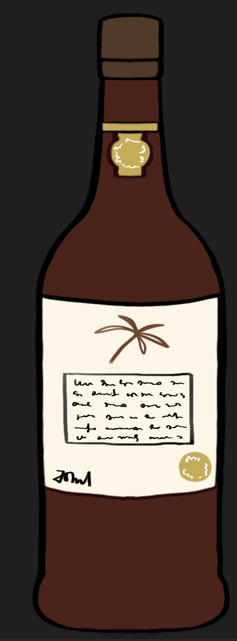
Okay, let’s solve this, or at least troubleshoot some more. Here is my 300 x 1000 bottle, that when scaled down in the scene properties, looks good. I’m using GD5.5.239, the download, not the online version.
It’s the actual file, all 89.3k of it, uploaded to a free hosting place. Pop that in your scene and see how it looks.
Hero
I’ll try your bottle today asap and let you know.
I’m also co differing trying scaling down my bottles on the editor and not in the events sheet. But scaling down in the event sheet isn’t very convenient to me (no proper scale slider…)
Hi Bubble,
I’m also using GD5.5.239 desktop app.
I’ve just tried with your sprite and… well, same happens.
I scaled it down in the editor (*0.23) and unfortunately, the same happens (as you’ll see on the screenshots below).
By the way, I forgot to mention that I’m using events to rotate the bottle (when dragged, tween angle “swingto”).
At this point, I’m considering re-drawing my whole project to a higher resolution. But if there’s a way to avoid it - and for sake of simple curiosity - I’d still like to understand where is that coming from
Whoa, that’s terrible, so jaggy. I though for sure you’ve got the Resources smooth image off so I turned mine off. And turns out for an image that size 300 x 1000, it makes almost no difference as you’ve already discovered. It does make a big difference for my test bottle that was drawn small though.
I put your bottle into my scene and scaled it down both in the editor and then in events and it looked…great. The screenshot is of it scaled down in the scene but it didn’t make any difference which way I did it. Once again the screenshot is of the preview and zoomed in.
Therefore, mystery not solved. Do they look equally bad in the scene editor and in the preview? If it’s only the preview where they look bad, have you tried disabling the tween rotation to see what happens?
Right, I don’t know why I didn’t notice this before but now I see that my bottles do appear jaggy in the preview but smooth out once I zoom in. Which makes more sense because the outline is still displayed as let’s say 3-5 pixels wide with not much room to smooth out. It just didn’t make sense before. My bottle is much worse than yours though but not quite as bad maybe as in your scene.
Therefore, does that mean the answer is to increase the resolution of your game? You wouldn’t have to redraw your bottles as they’re still bigger than needed, just scale down less. That must be the answer, therefore, lesson learned - edges need say, 8-10 pixels width to look good.
By the way, I tried the tween angle when dragging and that’s a nice touch. It didn’t affect how it displayed.
Also, here is something really good that I bookmarked a while back. I haven’t ever done it though because I’ve never got that far into the details of a game. But actually, I guess that advice is more for pixel art which I don’t do and you aren’t either.
Wow, again, thanks so much for taking the time to troubleshoot this! You’re a true hero.
I’ll duplicate my project into a bigger resolution and see how things go. Should probably be much better. That’s a good lessons learnt for future projects : lines from 8-10 pixels and bigger resolutions for non pixel games.
Well, I don’t even know if it’s a real lesson. For instance, I have a game that’s 800 x 1415 (can’t remember why I chose such weird numbers). And there’s an object, an orange glowy ball drawn at 68 x 68 but sized in the scene editor to 78 x 78. It should look bad especially as it’s a circle. But it looks fine to me. Here’s a clipped screenshot of it, there is no zoom in the game. The second one is about 100 x 100 and it also looks fine. Neither of them have outlines but the second one, the thickness of the ring is about 7 pixels and it seems smooth enough. So, if there’s anyone who has some guidance on how all this works, please step in.
Well, I guess the issue came from the outlines being too thin, as you already suggested.
I finally decided to change the resolution of my game, switching from 1280720 to 19201080. Everything looks much better this way and I won’t have to worry to much about re-designing some sprites with thin lines. Still seems to be a bit overkill for a simple point n click 2D game, but as long as it displays everything properly, I’m happy.
Thanks a lot anyway for your help, I really appreciate it! And if anyone has other infos or good tips on how to display 2D sprites at best on gdev, feel free

 .
.