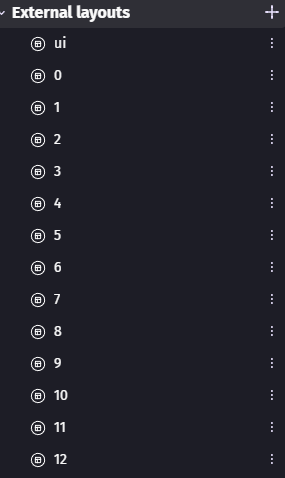
External layouts work best for projects where the levels are extremely similar. They’re perfect for tracks for racing games or puzzle pieces for say a jigsaw puzzle.
If your levels are really similar then use external layouts. If the levels are too different then it might be easier to use different scenes. You probably wouldn’t mix a racing game and jigsaw puzzle in the same scene using layouts. It would easier to have something like that in different scenes.
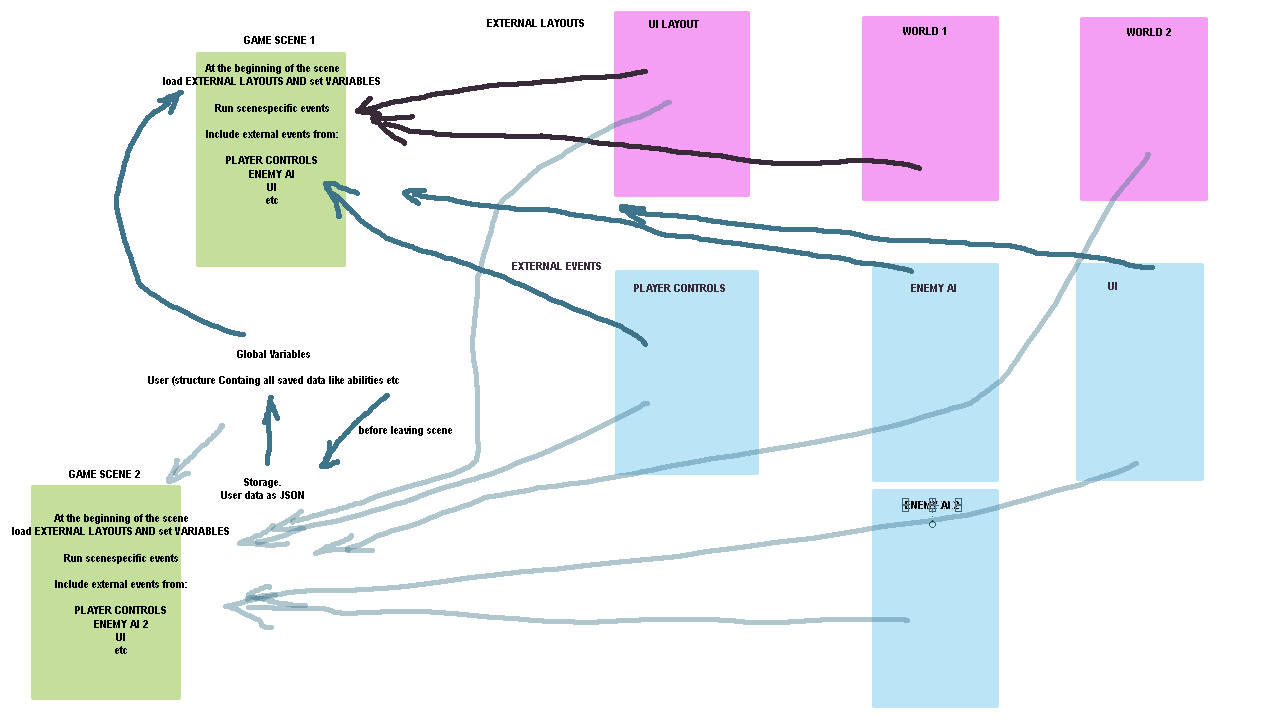
You could still reuse events with different scenes. You could use external events, behaviors (built-in or custom) or other extensions. That would keep the main event sheet events to a minimum.
Now, if things were really similar then you can make changes to things like variables and other settings with a bunch of events after the layout is added.
You can add a layout from a list or as an expression.
Add layout “Level” + ToString(CurrentLevel)
CurrentLevel = 1
… Set gravity to 1.5
CurrentLevel = 2
… Set gravity to .5
Now, you could also add object variables that could hold certain settings. The default values can’t be different but you can edit the instances and change their values. So, when the layout was added, you could get the setting from it. You could even include dummy objects just to hold settings and then delete them.
Add layout “Level” + ToString(CurrentLevel)
Set gravity to Player.GravityVariable
You could also save settings in a scene array or an array of structures if there are several settings.
Add layout “Level” + ToString(CurrentLevel)
Set gravity to Settings.Gravity[CurrentLevel]
Remember, adding layouts are different than adding objects. For some reason layout objects aren’t automatically picked when they’re added. So, if there are already instances of an object in a scene then any events would apply to both the new and old objects. You can use object variables to track if an object was previously added.
Also, it’s best not to add subevents to the line that adds layouts because objects don’t always get added instantly. Sometimes, they’re not added until the next event. The same is true with deleting objects. They’re not deleted immediately.
Instead of
Start was clicked
… Delete layout objects
… … Add layout
… … … Set player opacity to 128
Use
Start was clicked
… Delete layout objects
… Add layout
… Set player opacity to 128