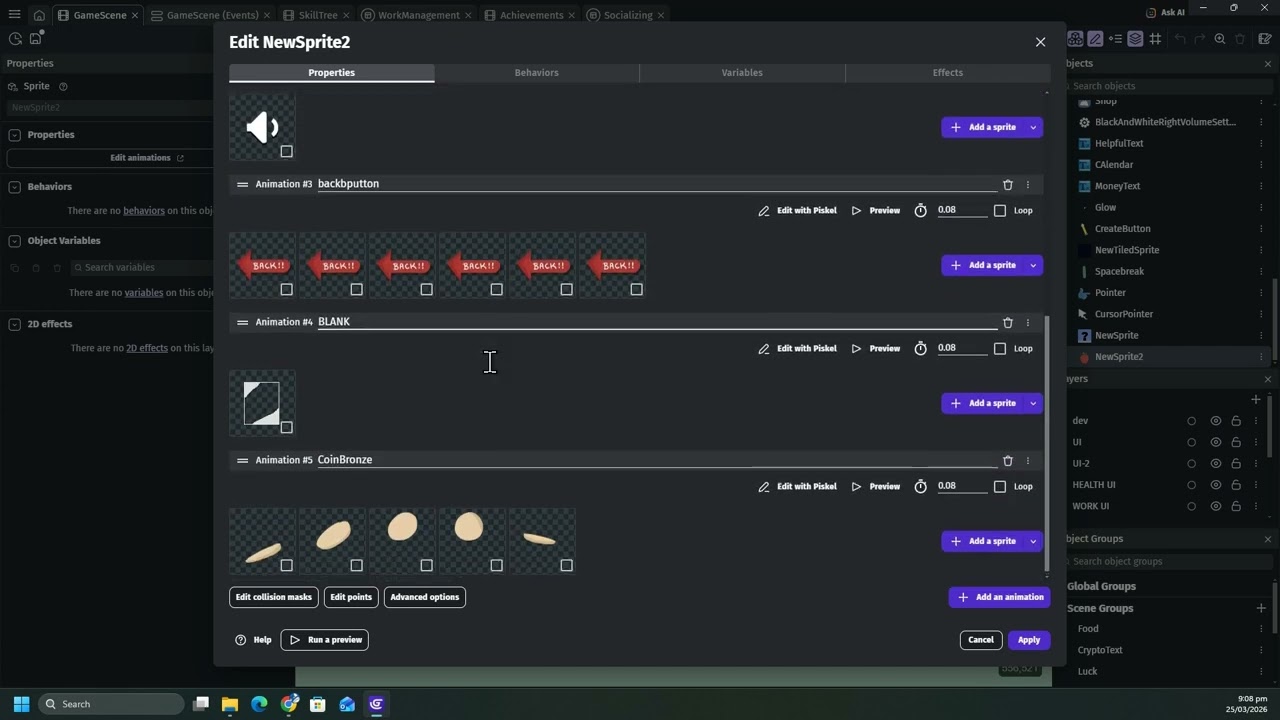
Is there a way to add all of them into the same object as separate animations without the classic method?
I mean instead of doing this action 10 times → +Add animation → +Add Iimage → Select Image
Just do it once, and have all the images be sorted automatically into different animations?
I just discovered that if their name is different, Gdevelop will add them as separate animations automatically, but is there a way to do this if their Base Name is the same? Or is the only solution to rename them?
Honestly, I’m just curious, since my main animation software is Adobe Animate and most of the time, I create a lot of things in the same file, so they get exported with the same name plus the number in front.
I know how to shift click multiple images to get them to all be multiple frames in one animation. And I think I've done your trick in the past but have forgotten. Cos I remember a long time ago wanting to get multiple frames and getting multiple animations or vice versa.
Gdevelop will automatically create new animations if the Base name of your sprites is different and keep the images with the same Base name + different number as the same animation.
Video for example
What I want to know is if there is another trick to select sprites with the same base name, but different numbers and have them be sorted automatically as different animations. Etc turn Apple1,Apple2,Apple3 into 3 animations.
Ohhhh, it just so happened my experiment was selecting pics that had the same name and that’s why they all went in as frames of the same animation.
So it turns out the animation editor is actually quite clever - same names will be frames, different names will be animations, perfect. But not perfect for you Dsm.
I think the best option for you would be to get one of those batch renamer apps. And use a letter instead of number for the add on to current name part. Like AppleA1, AppleB2. I have used a free renamer thingo a long time ago that I’m pretty sure would have been able to do that.
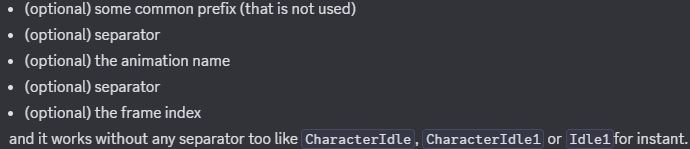
This might be interesting to you. GDevelop will pick up the first number in a filename as the animation number and the second as the frame number:
my_sprite_01_01.png = is animation 1 with 1 frame.
So if you have a whole bunch of animations with one frame each, when you import them at the same time into a sprite object they will automatically be assigned to an animation each with one frame. I do this all the time for my scene artwork.
I haven’t tried it, but I’m sure if you have naming like the below lists you’ll end up with a series of animations with however many frames you want, all automatically arranged when you import multiple images at the same time:
Note: GDevelop would order 10_01 before 01_01 in the sprite object’s animation list. It’s a pain, but you may need to re-order some of the animations if it bothers you that the first anim in the list (anim zero) has your 10_01 sprite instead of your 01_01 sprite. You can drag and drop animations up/down, or use the 2-dot menu to quickly send animations to new positions. Even with this odd quirk, this style of naming should save you a lot of time over importing individual frames one-by-one.
this should be there on the editor or at least when you import …or somewhere - I sometimes seemed to get random results importing. The frames should be numbered too on the editor so that when you’ve got 26 frames …you dont have to literally count them …its a nightmare when you duplicated the 13th frame
I agree, the sprite object interface could be better, and I expect most people don’t know these naming tips. For ages I used to import individual PNGs which took a lot of time.